Art & Media
Visual assets play a critical role in how players discover and engage with your game on QS Play.
Before launching a game, players usually see your game card, cover image, screenshots, and promotional assets long before they experience the gameplay itself. High-quality visuals help communicate the game's identity, attract attention, and improve engagement across the platform.
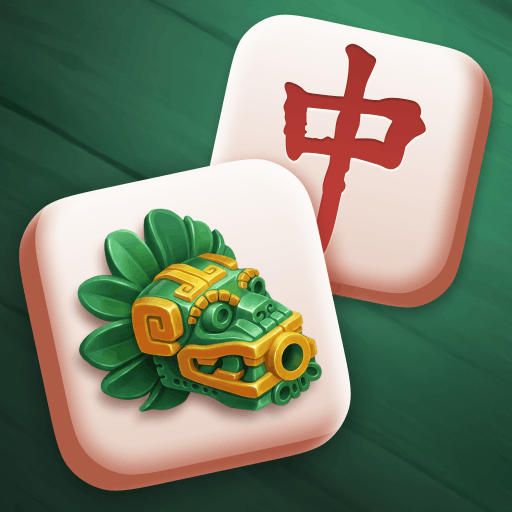
Game Icon
The game icon serves as the primary identifier of your game across catalogs, collections, recommendations, and search results.
Example:
File Requirements
- Resolution: 512 × 512 px
- Format: PNG (recommended, 24-bit, no transparency) or JPEG
- Color space: sRGB
- Aspect ratio: 1:1
- Maximum file size: 1024 KB
Important Guidelines
- The image must be a perfect square with sharp corners.
- Do not apply rounded corners. QS Play automatically applies its own mask.
- Ensure the icon remains recognizable at small sizes.
- Avoid excessive detail that becomes unreadable when scaled down.
- Do not include badges, ratings, prices, platform labels, or misleading promotional elements.
Cover Image
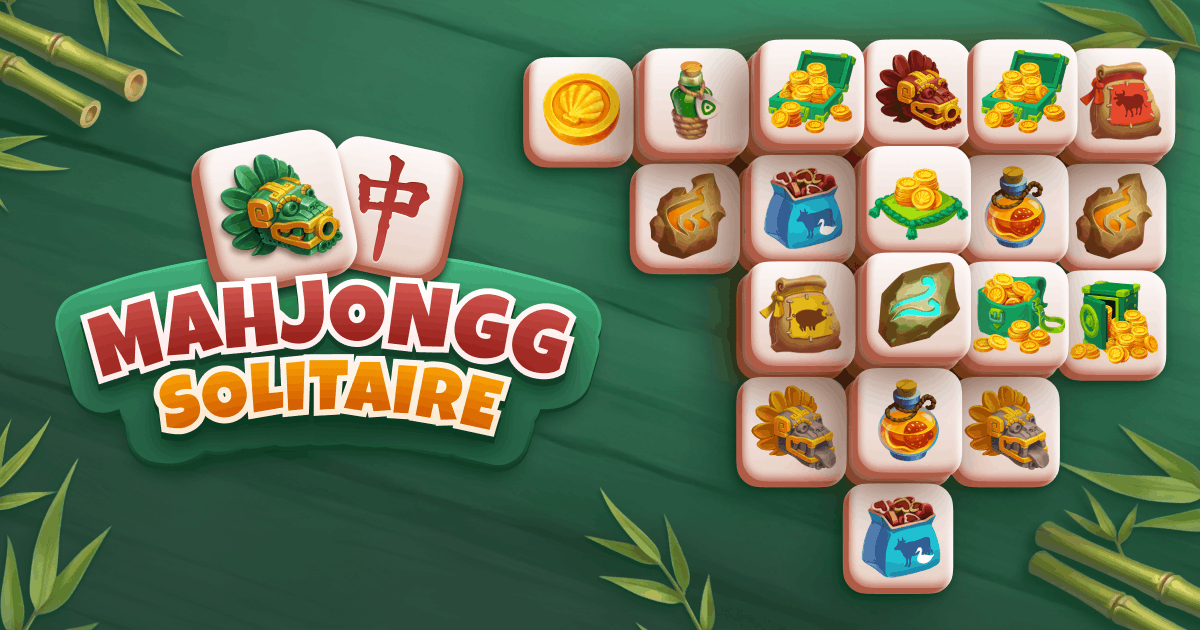
The cover image is the primary visual shown throughout QS Play and is often the first thing players see when deciding whether to open a game.
Example:
File Requirements
- Resolution: 1200 × 630 px
- Format: PNG (no transparency) or JPEG
- Color space: sRGB
- Maximum file size: 1024 KB
- Include the game's logo or title integrated naturally into the artwork.
Recommended Content
- Use a clean and balanced composition.
- Highlight the most recognizable gameplay elements, characters, or themes.
Not Allowed
- Buttons such as "Play", "Start", or "Play Now"
- Decorative borders around the image
- Mouse cursors
- UI elements or menus
- Store logos (Google Play, App Store, Steam, etc.)
- Social media icons
Gameplay Preview Video
A short gameplay video may be displayed when players hover over a game card.
Example:
File Requirements
- Resolution: 1200 × 630 px
- Alternative resolution: 1920 × 1080 px (16:9)
- Format: MP4 (H.264) or WebM
- Frame rate: 30 or 60 FPS
- Duration: 15–30 seconds
- Audio: Muted
- Maximum file size: 50 MB
Videos uploaded in 16:9 format may be cropped vertically to fit the game-card preview container.
Recommended Content
- Showcase actual gameplay.
- Focus on the most engaging moments.
- Use a first frame that closely matches the static cover image for a seamless transition.
- Keep important gameplay action near the center of the frame.
Not Allowed
- Black bars (letterboxing or pillarboxing)
- Default mouse cursors
- Download prompts or promotional overlays
- Long logo sequences or intro screens
Social Sharing Image
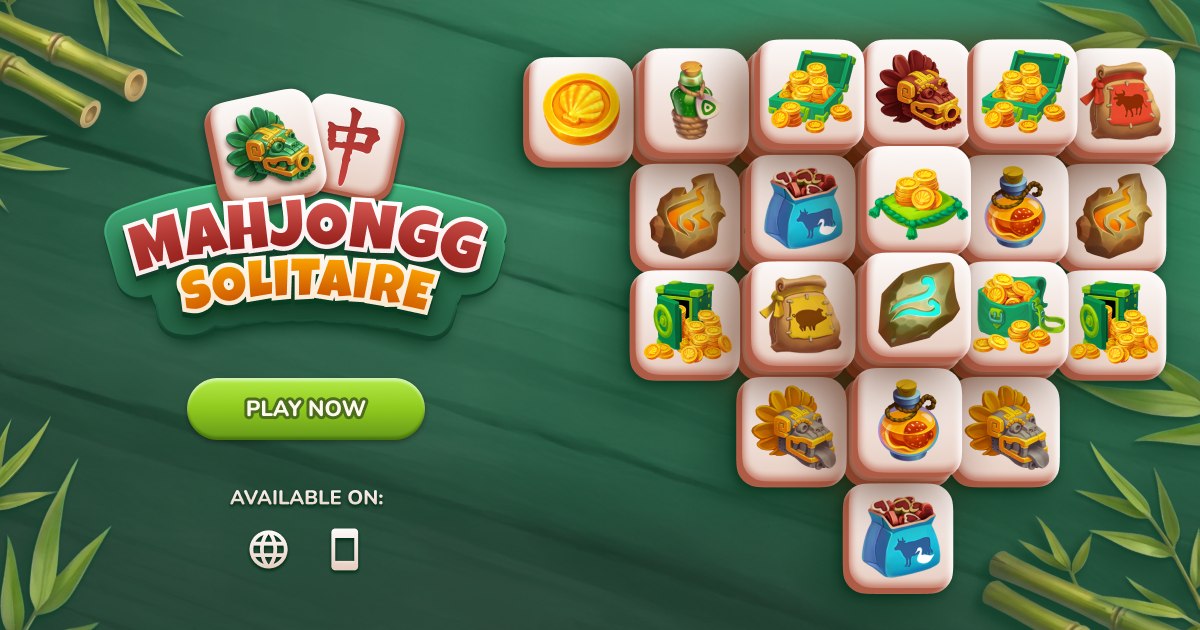
The social sharing image is displayed when a game page is shared through messaging platforms and social networks such as Facebook, X, Telegram, or Viber.
Example:
File Requirements
- Resolution: 1200 × 630 px
- Format: JPEG (recommended) or PNG
- Color space: sRGB
- Maximum file size: 1024 KB
Content Guidelines
Unlike the main cover image, call-to-action messaging is allowed and encouraged.
Examples include:
- Play Now
- Start Playing
- Join the Adventure
- Challenge Your Friends
Buttons and promotional text may be incorporated directly into the artwork.
Screenshots
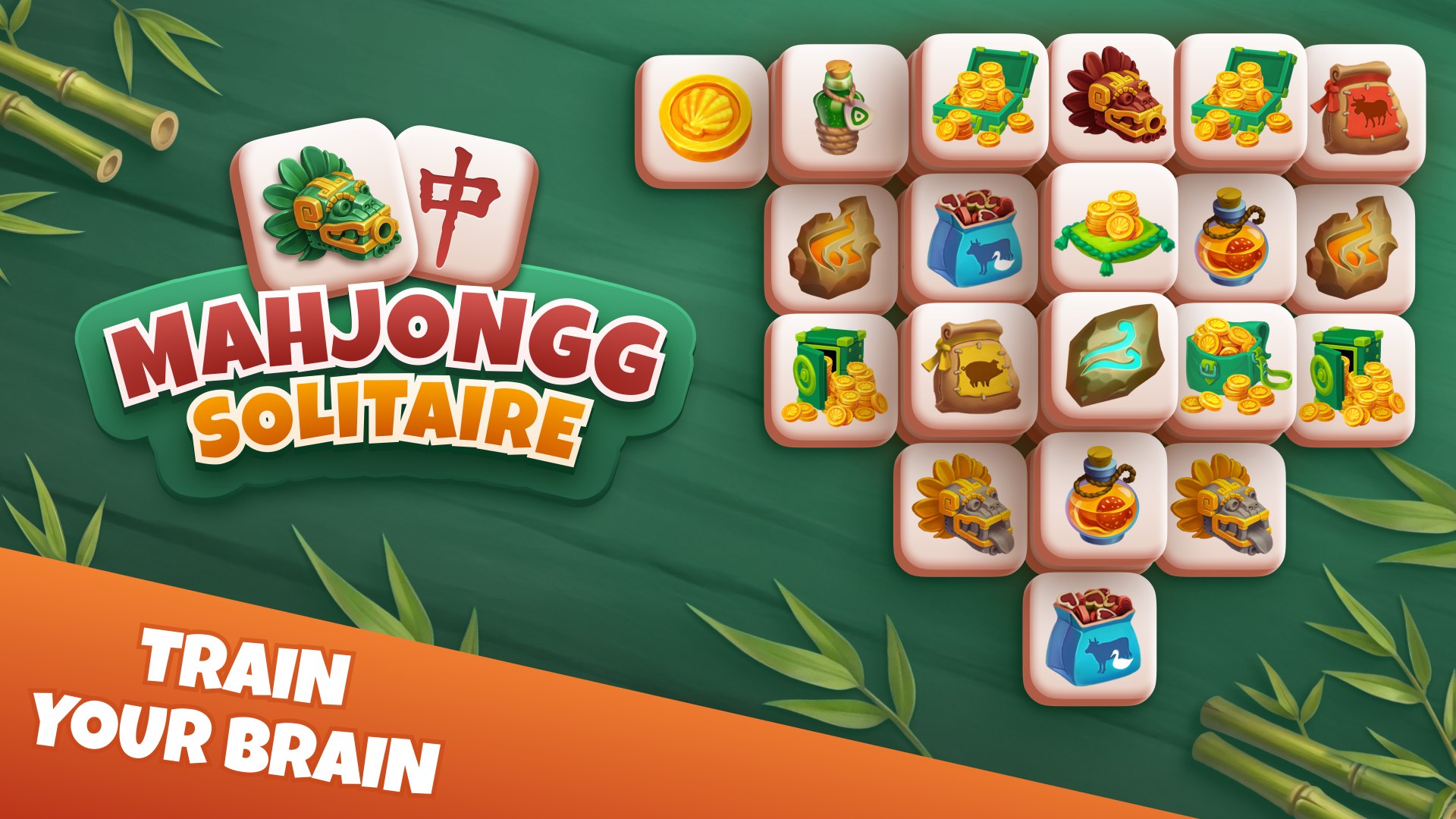
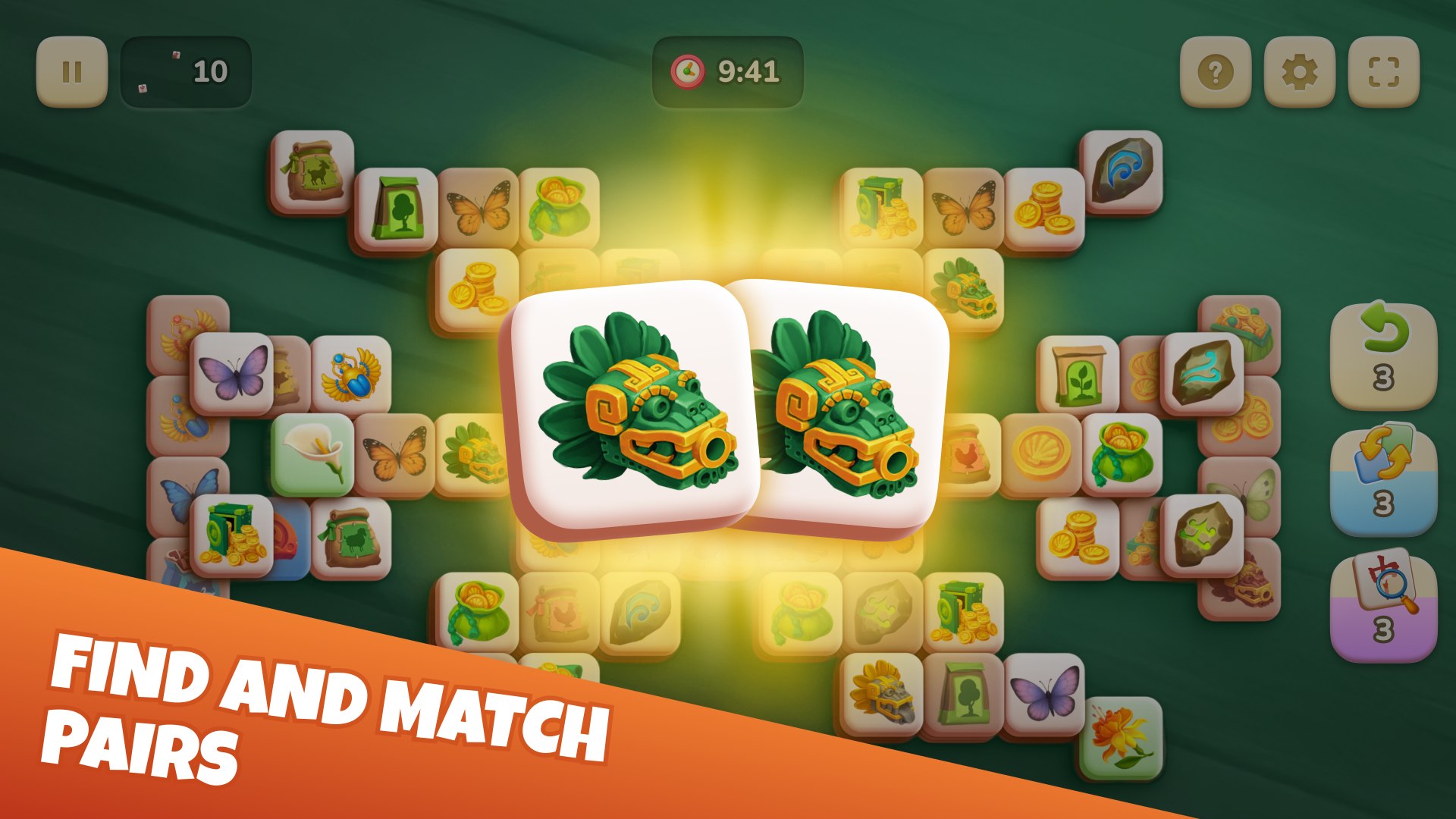
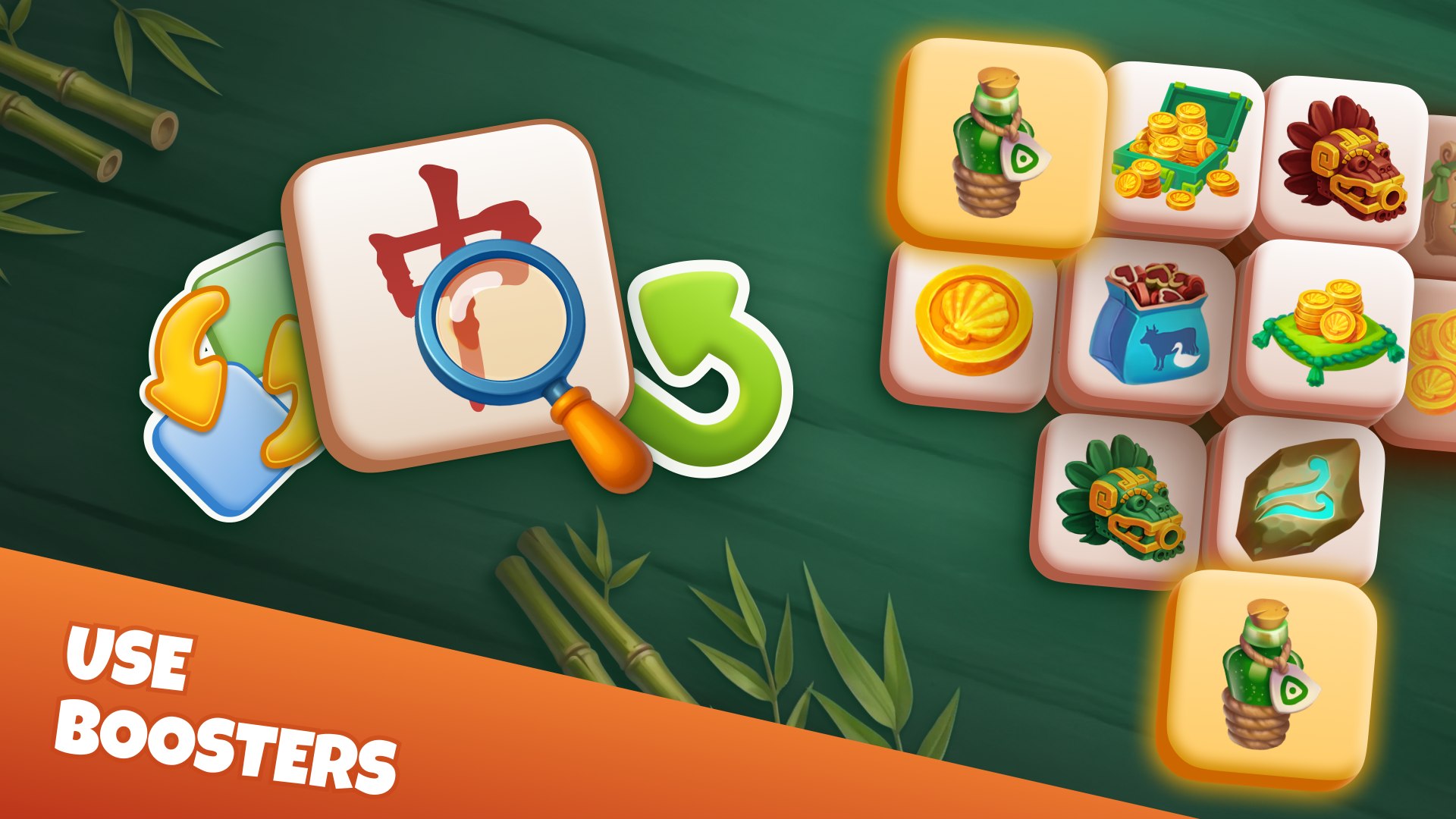
Screenshots are displayed on the game details page and help players understand the gameplay experience before launching the game.
Example:
File Requirements
- Resolution: 1920 × 1080 px
- Format: JPEG (recommended) or PNG
- Color space: sRGB
- Maximum file size: 1024 KB per image
- Minimum: 3 screenshots
- Maximum: 8 screenshots
- Recommended: 4–6 screenshots
Content Guidelines
- Showcase the game's most important features.
- Highlight gameplay, progression, mechanics, or unique moments.
- Clearly communicate the game's atmosphere and player experience.
- Use real gameplay imagery whenever possible.
Not Allowed
- Duplicating the game icon inside screenshots
- Excessive visual clutter
- Third-party platform logos
- Store badges
- External brand logos
- Misleading promotional artwork
General Guidelines
All visual assets submitted to QS Play should:
- Accurately represent the gameplay experience.
- Maintain a consistent visual style and branding.
- Be optimized for both desktop and mobile users.
- Avoid misleading players about the game's content or features.
- Comply with copyright, trademark, and intellectual property requirements.
Assets that significantly misrepresent the game or violate these guidelines may be rejected during the review process.